Sharing project files in class with Scratch for Children 2
Scratch for Children 2 has no accounts, so each project lives on one device. To hand out an example or collect children's work, you use a file. Here is how it works, step by step.
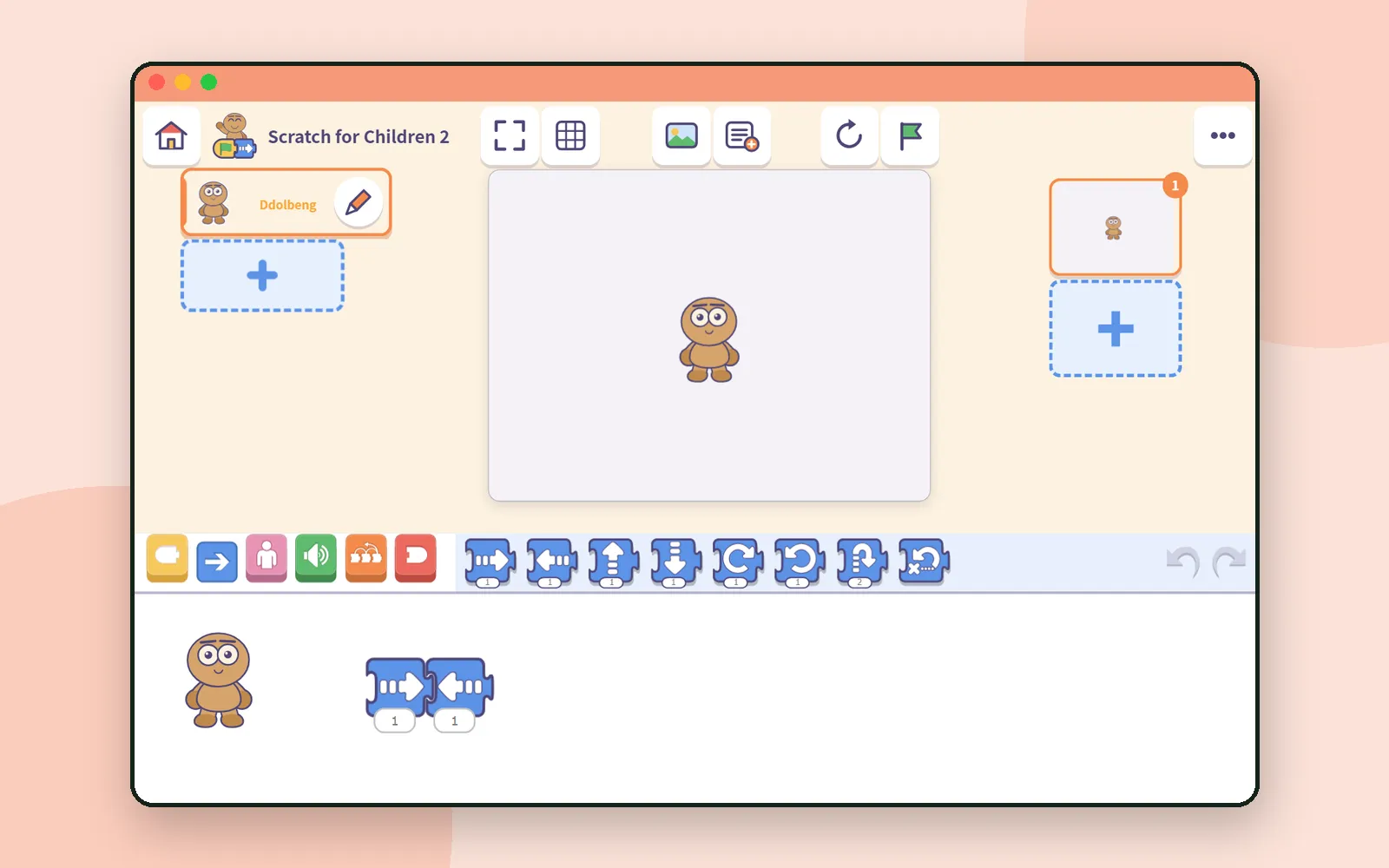
Sooner or later this happens in a classroom using Scratch for Children 2. You want to collect the projects children made, or hand the same example out to a set of tablets.
Scratch for Children 2 has no accounts, so a project lives only on the device it was made on. To move it from one device to another, you use a file. We tried it, start to finish. 📁
Why a file?
The app’s own help puts it plainly. Saving is automatic, and work stays on this device: in this browser on the web, or inside the app if you use the app. Clear the browser data or remove the app and the work goes too, and it never appears on another device by itself.
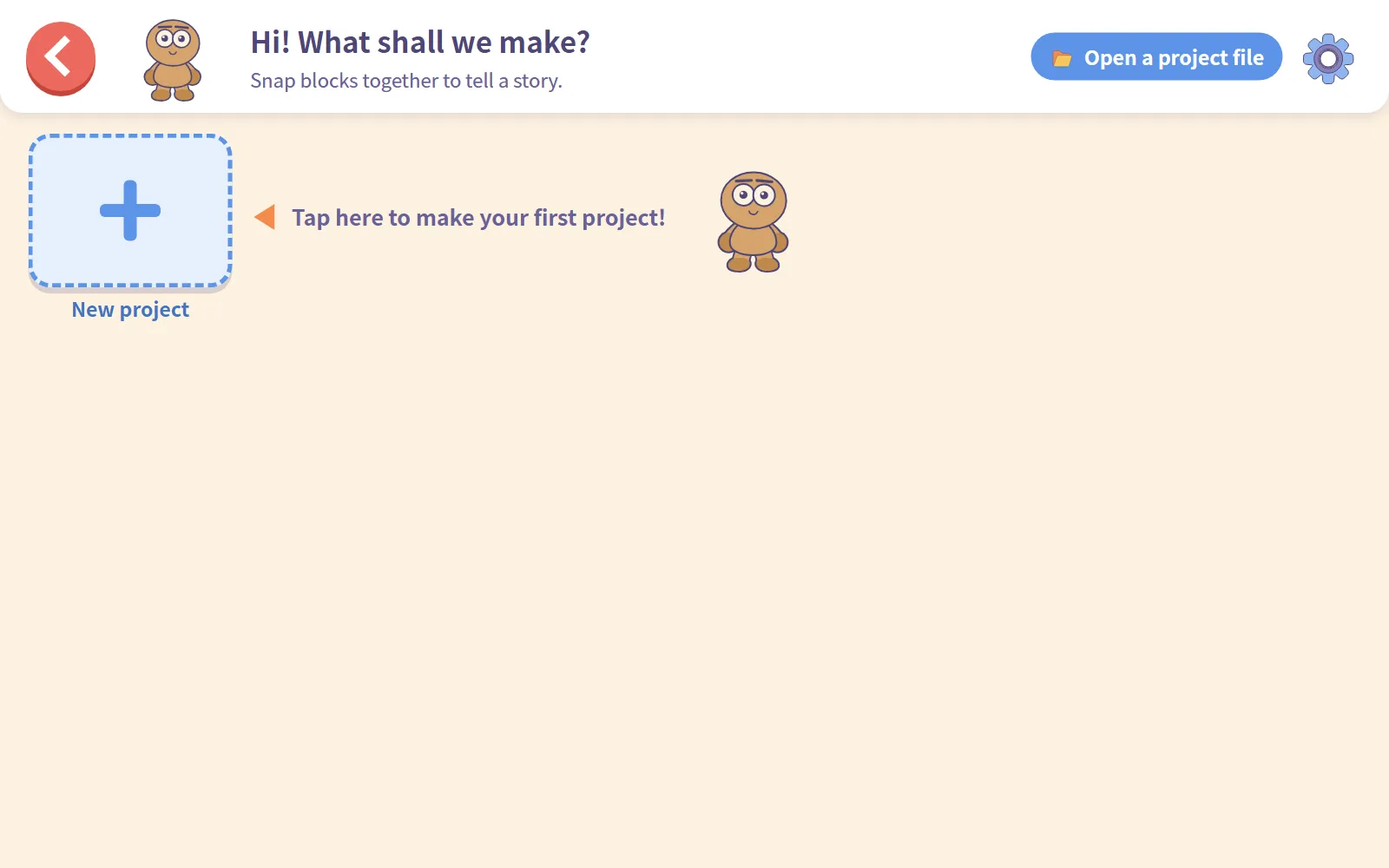
So a tablet that has never opened the app shows an empty My projects, whatever was made on the tablet next to it.
Export to a file
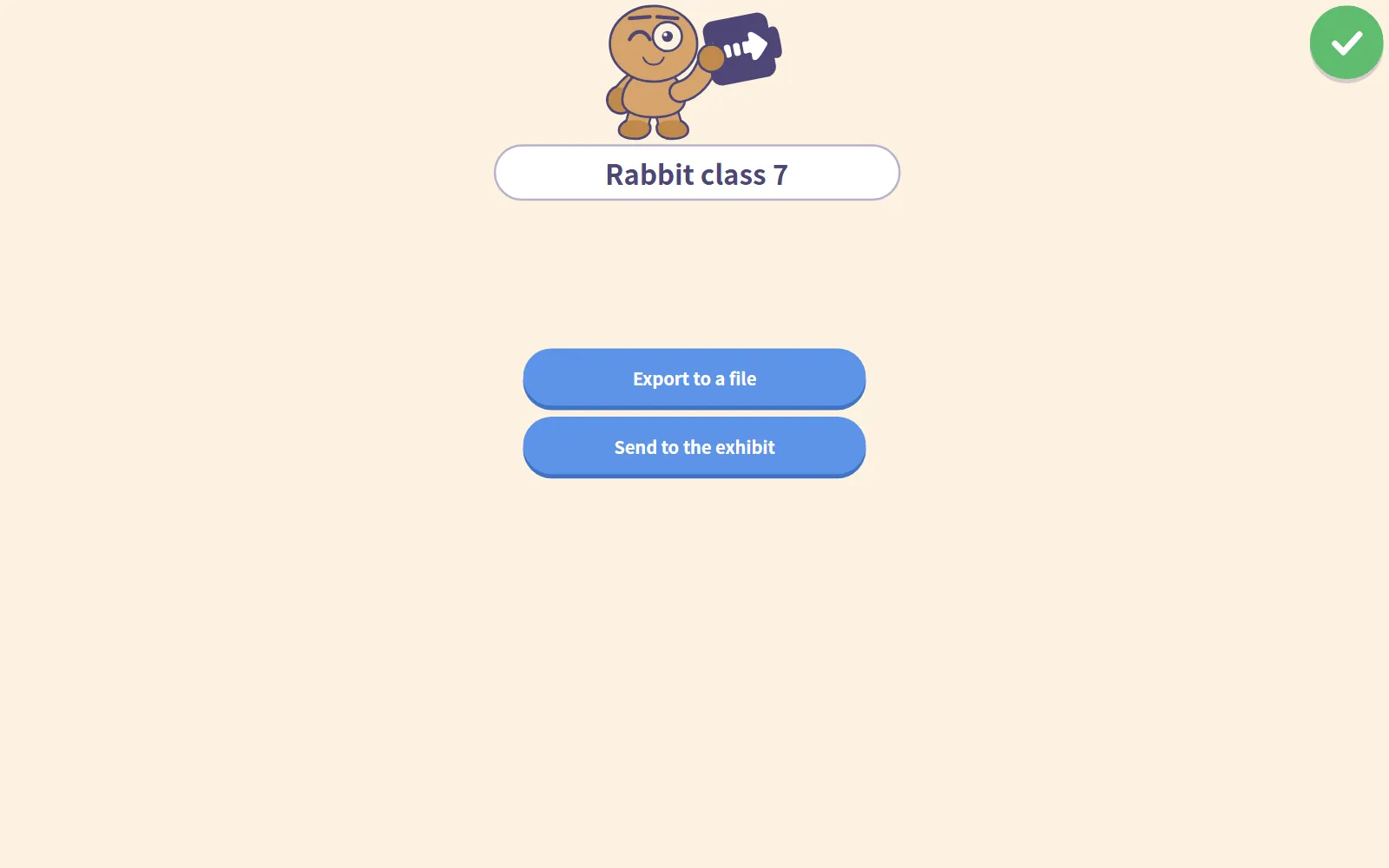
In the editor, tap … at the top right. The project panel opens, with the project name at the top and Export to a file below it.
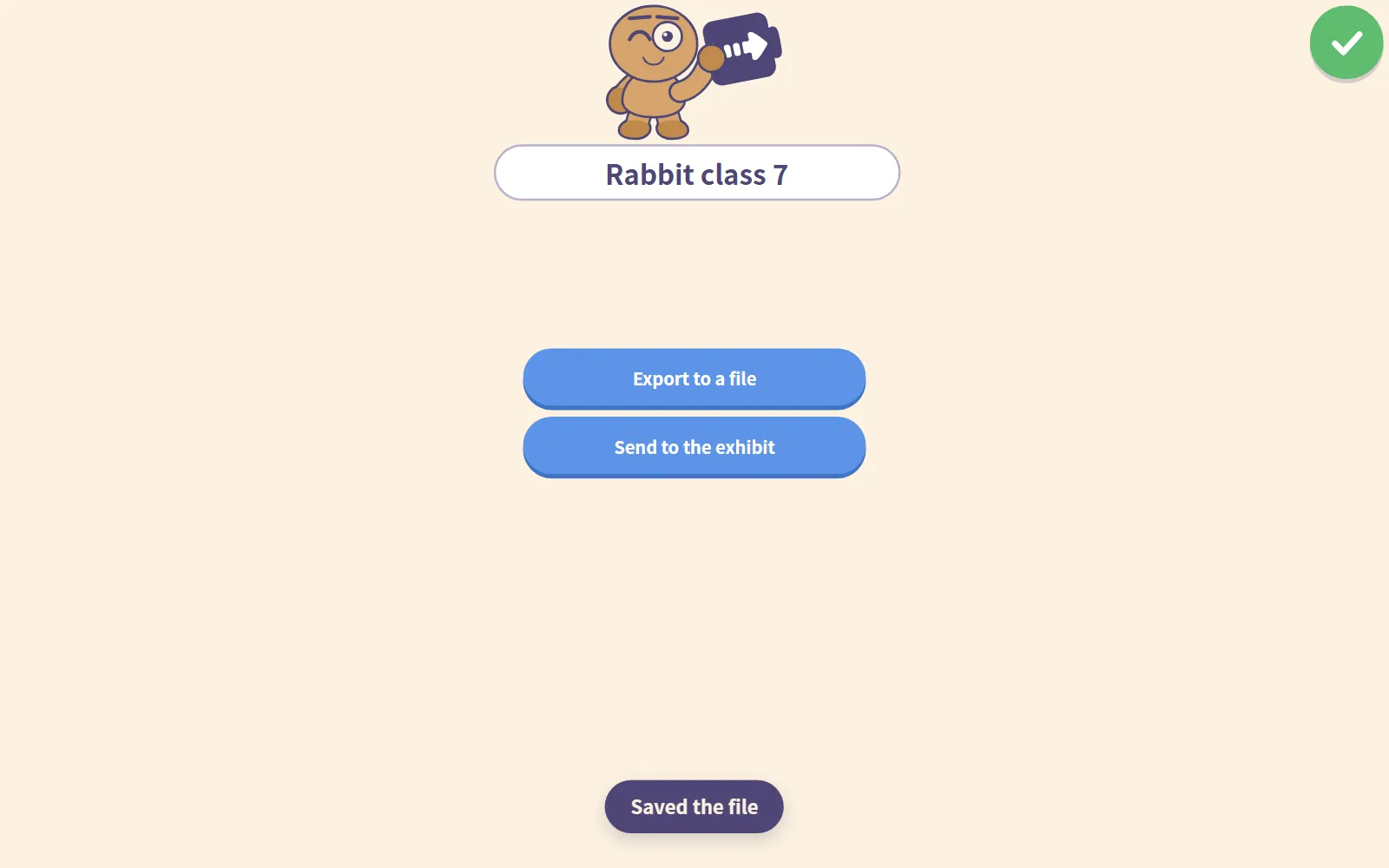
Tap it, and the strip at the bottom says Making the file, then Saved the file, while the browser downloads it. There is no extra question to answer first.
The file is named after the project, with the spaces taken out and .sjr on the end: a project called Rabbit class 7 became Rabbitclass7.sjr. That is why it helps to name the project before you save it. The name box is right at the top of the same panel.
Open a project file
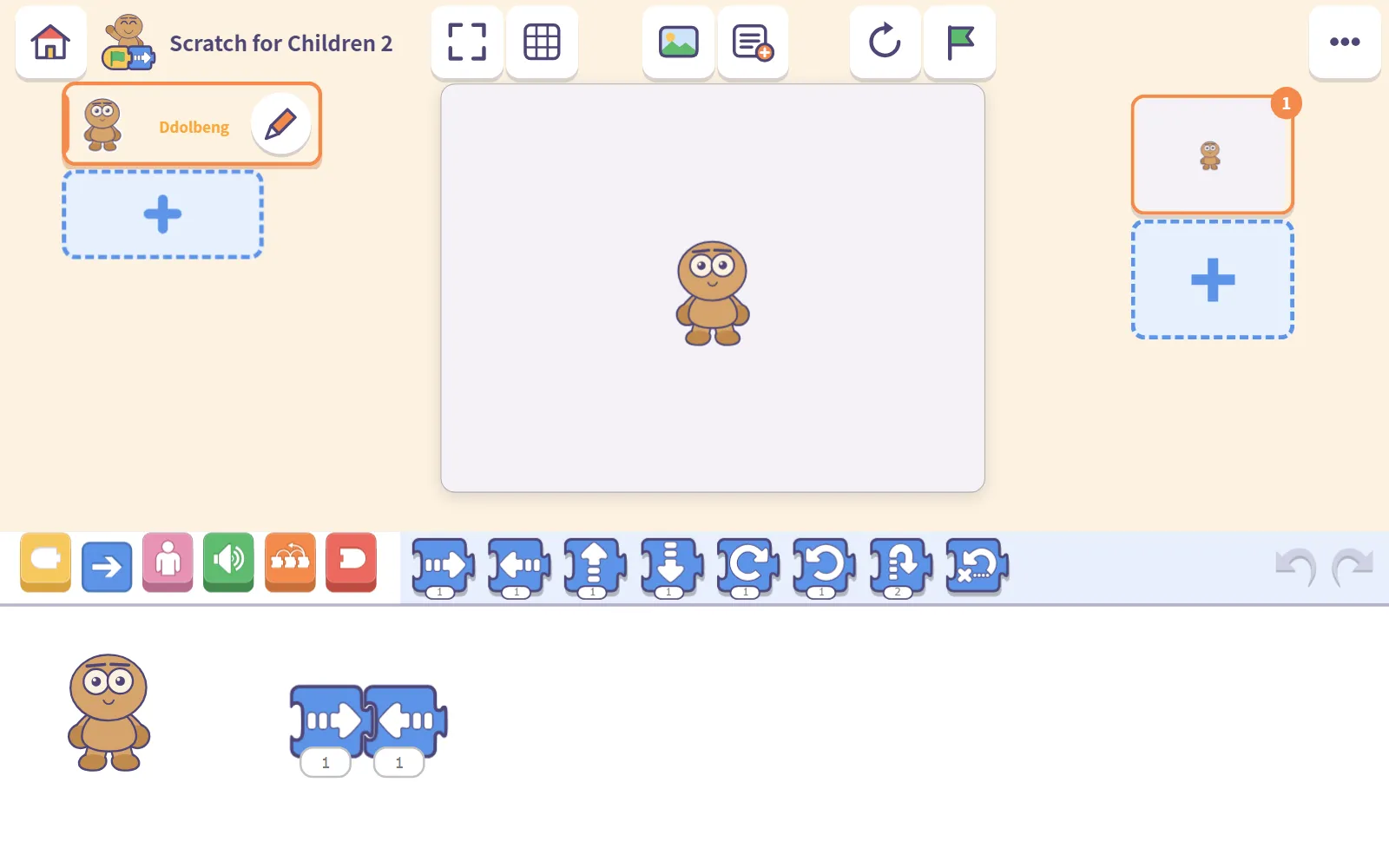
On the receiving device, go to My projects and tap Open a project file at the top right. Pick the file, and it opens straight into the editor, with the characters and blocks as they were.
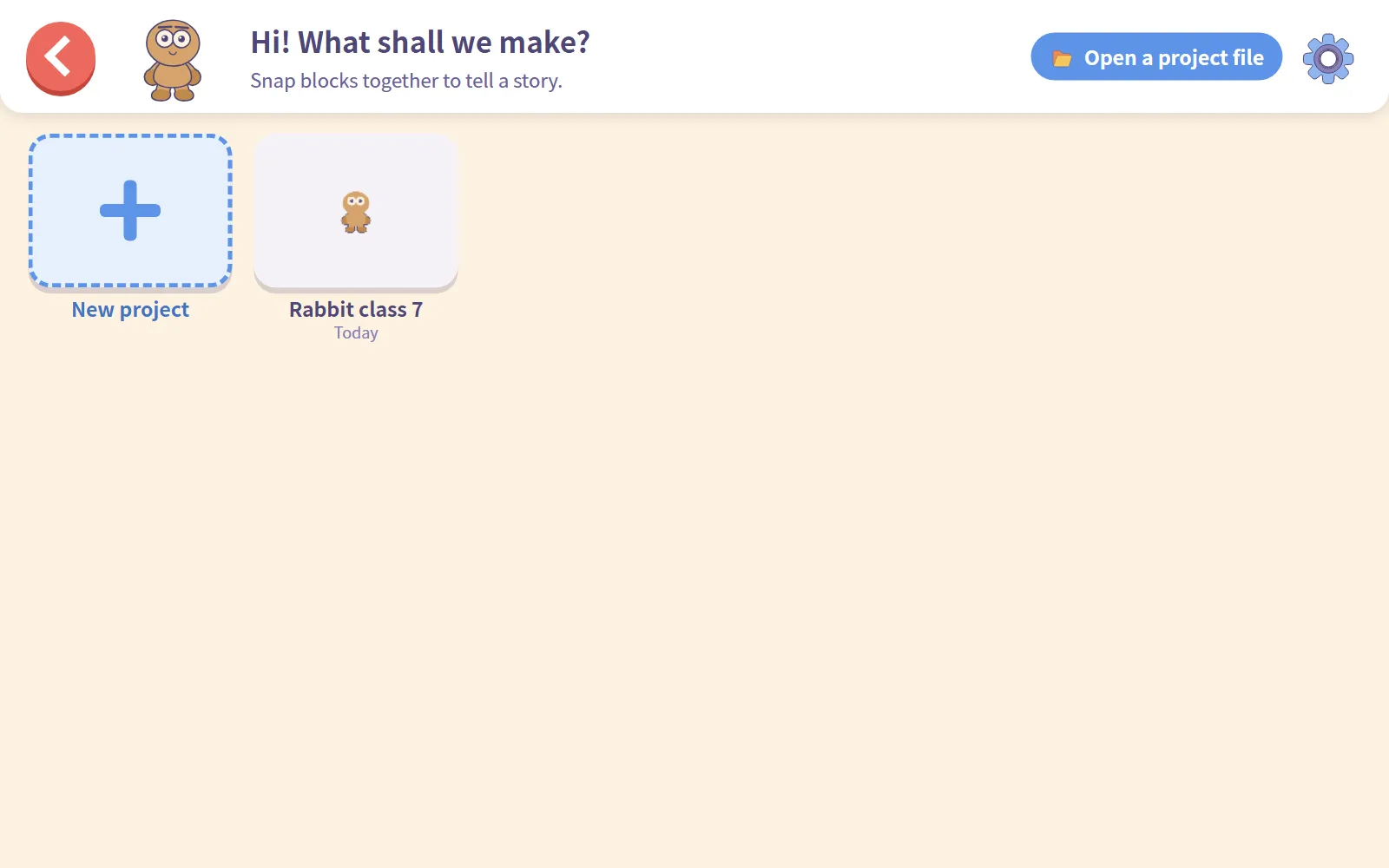
Tap the house to go back, and it is in My projects under its own name.
The project you open is always a separate copy. Whatever the child changes, the original on your device stays exactly as it was. That is what makes it safe to hand out an example.
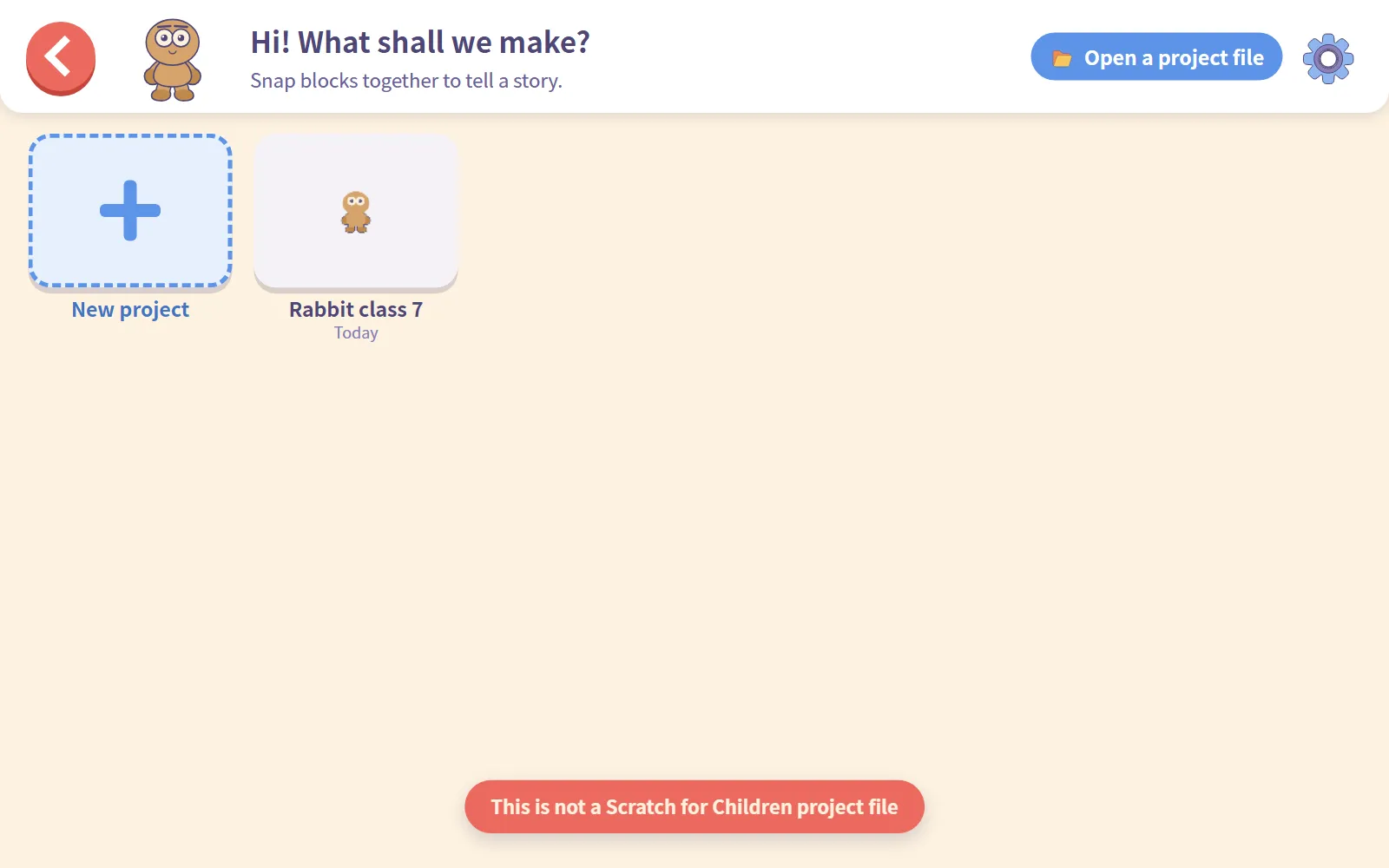
Pick the wrong kind of file and a red strip tells you so: This is not a Scratch for Children project file. Nothing else happens.
Two classroom routines
Handing out an example
Collecting work
Because each file is a copy, a project that changes after it was saved needs saving again. A file is the project as it was at that moment.
Before the lesson
If you use the web version on a weak connection, look in Settings for Use it without wifi. Its note is written for exactly this: worth doing on wifi before a lesson. Tap Get ready now once, and the pictures and sounds are kept on the device.
Use it like an app, in the same place, adds Scratch for Children 2 to the home screen, so children can open it from an icon instead of typing the address.
Coming up next
New to Scratch for Children 2? Start with Your first 30 minutes with Scratch for Children 2.
Next time: Blob Opera, where you sing one note and AI answers in harmony.
Frequently asked questions
Why can't I see a project on another tablet?
There are no accounts, so work stays on the device it was made on: in that browser on the web, or inside the app. To move it, save it as a file and open the file on the other device.
How do I save a project as a file?
In the editor, tap the … button at the top right to open the project panel, then tap Export to a file. The file ends in .sjr and is named after the project.
How does the other device open it?
On My projects, tap Open a project file at the top right and pick the file. It opens straight into the editor, and afterwards it appears in the list.
If a child changes the copy, does my original change?
No. Opening a file always adds a separate project. To collect the changed version, the child saves a new file.