No need to start from a blank stage: examples and storybooks in Scratch for Children 2
Scratch for Children 2 has a shelf of finished examples and storybooks. Children open one, press it, change a block, and the app quietly keeps the original safe.
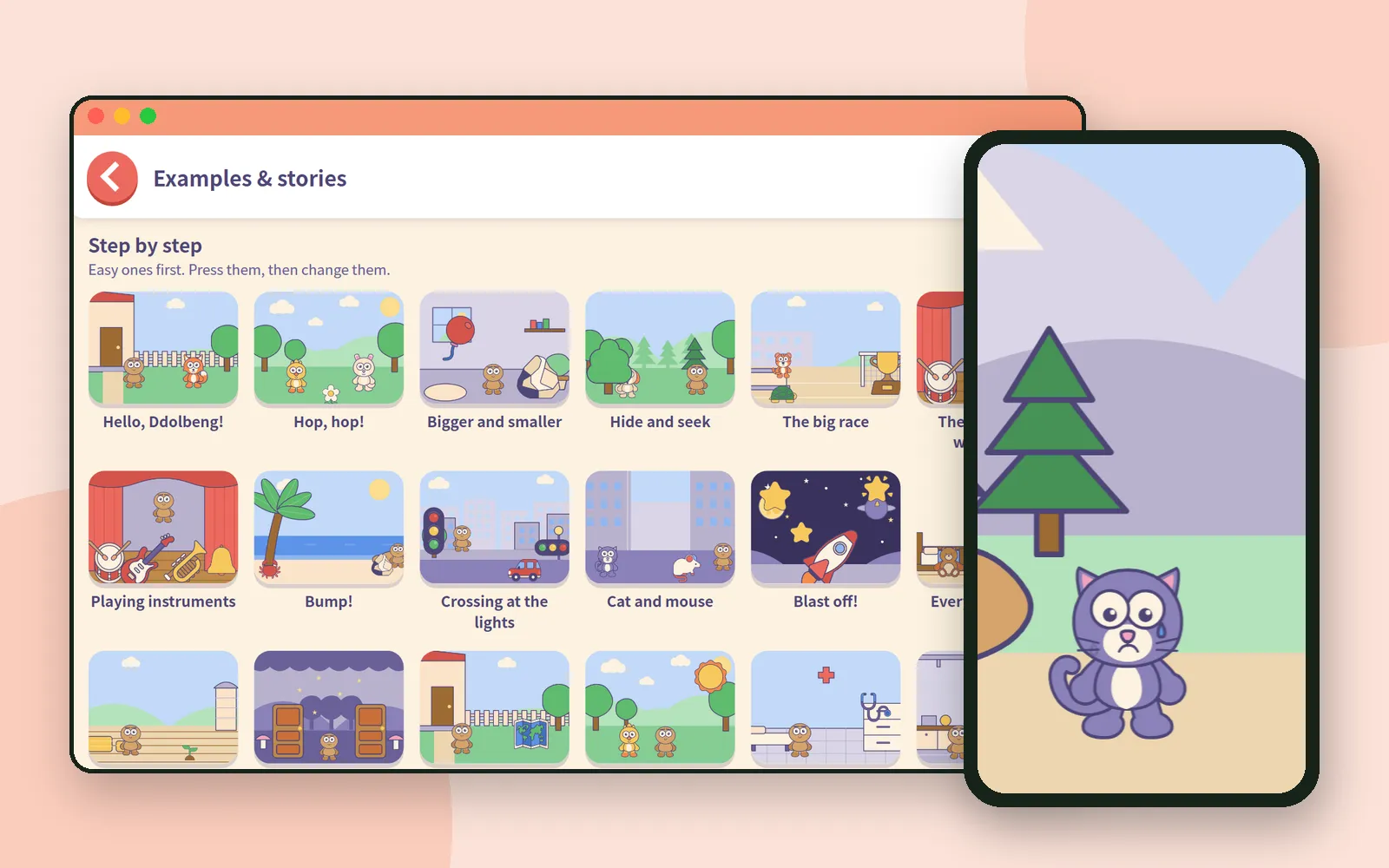
Earlier posts about Scratch for Children 2 were all about making something on an empty stage. This time, the other way round: opening something that is already finished, pressing it, and changing it.
An empty page is hard for adults too. For a young child, the step before making something from nothing is often playing with something that already works: press it, see what moves, change one thing. Scratch for Children 2 has a whole section for that. 📚
The third card: Examples & stories
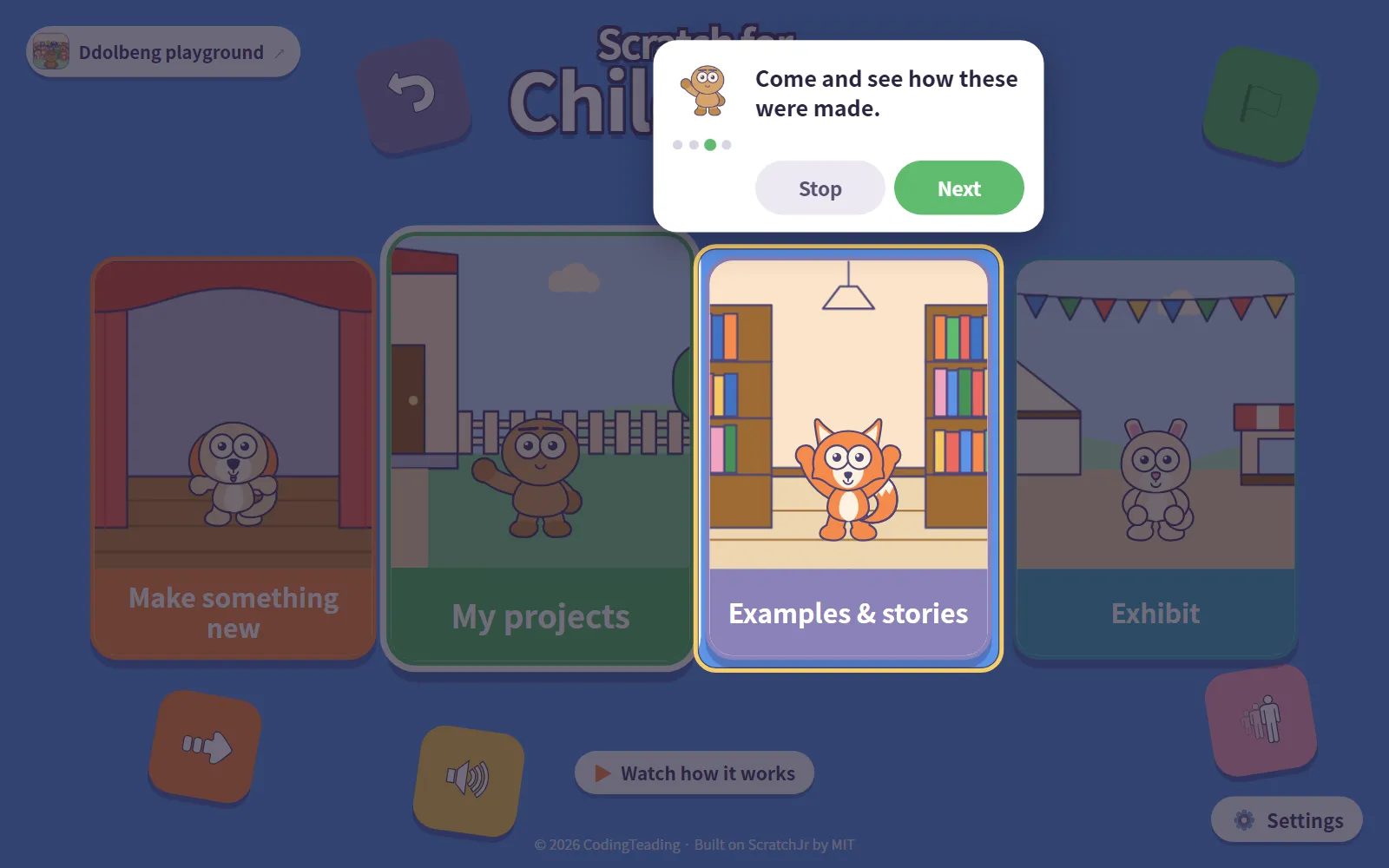
Tap Start and four cards appear: Make something new, My projects, Examples & stories, and Exhibit. Today is about the third one.
On a child’s first visit a short walkthrough points at each card, and for this one it says: Come and see how these were made. It can be closed any time with Stop, and turned back on later from Settings.
Three shelves
Inside, the examples sit on three shelves, each with a one-line description. That line makes it easy for an adult to choose.
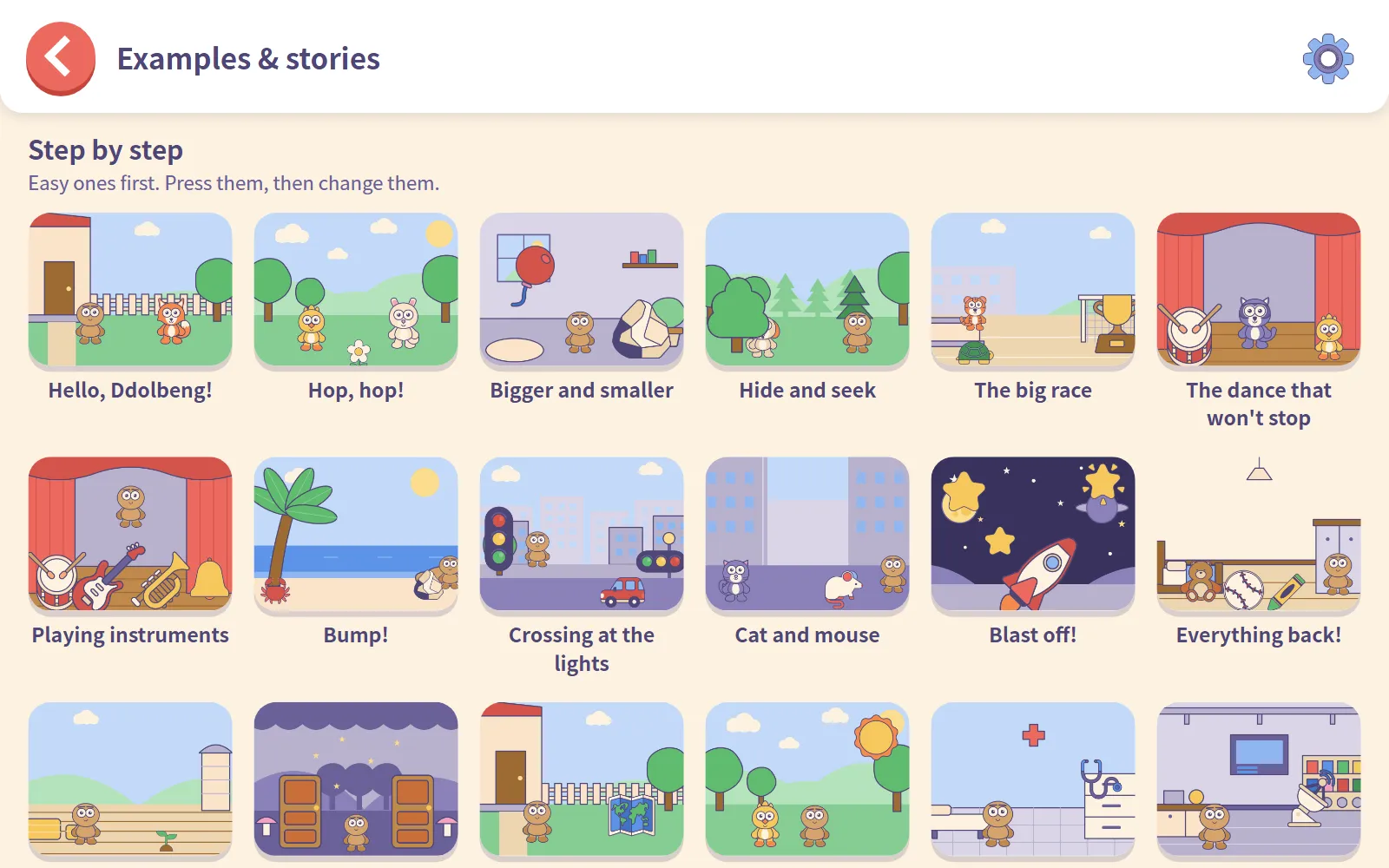
Step by step: Easy ones first. Press them, then change them. These are in order. The first ones are short, starting with Hello, Ddolbeng!, Hop, hop! and Bigger and smaller, and further along they grow into bigger stories with several pages.
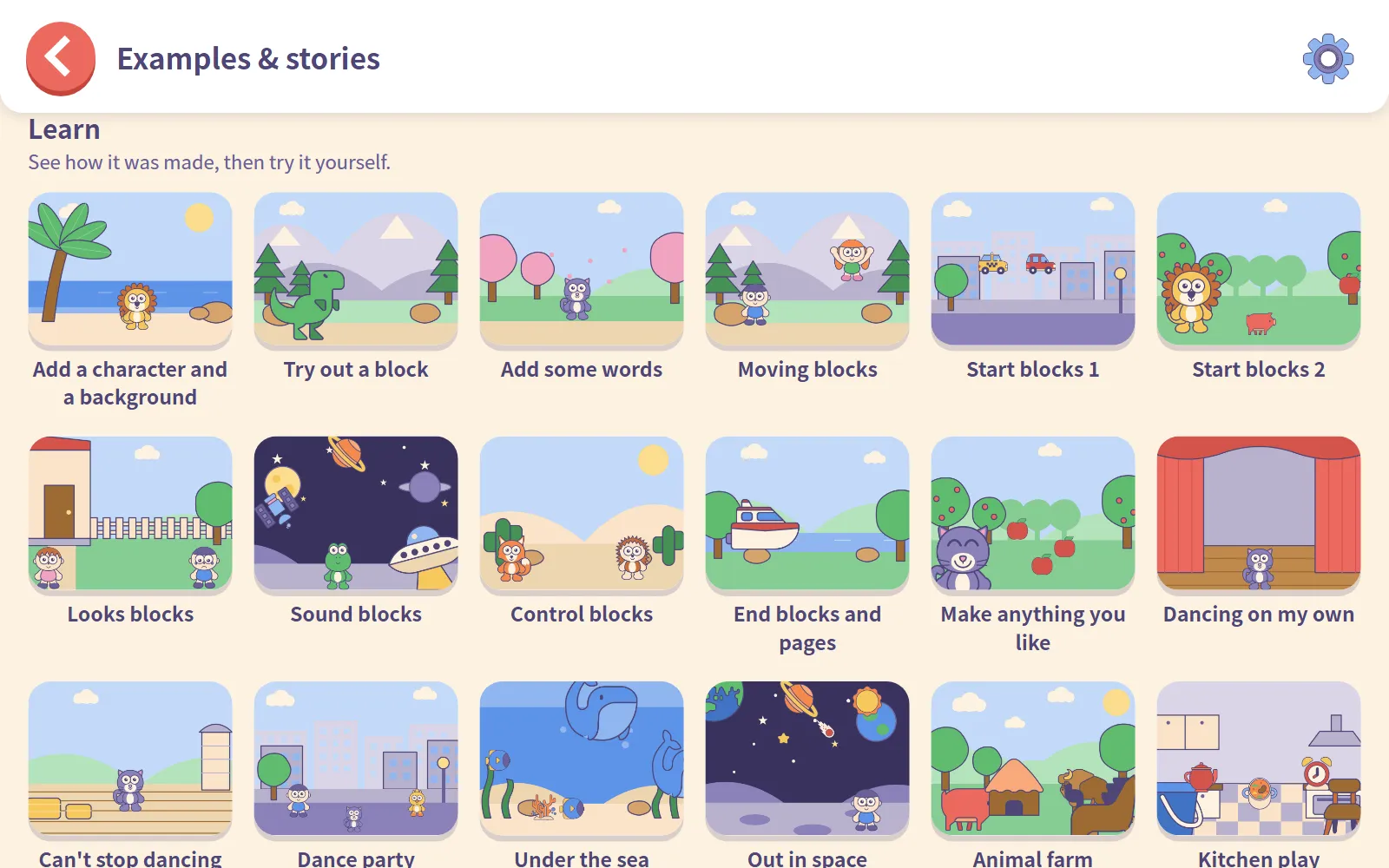
Learn: See how it was made, then try it yourself. At the front are examples that each show one kind of block, such as Moving blocks or Sound blocks. Behind them are finished projects on all sorts of themes. The app’s Settings page notes that some examples are based on ScratchJr sample projects by BootUp PD, used with their permission, with new pictures drawn for version 2.
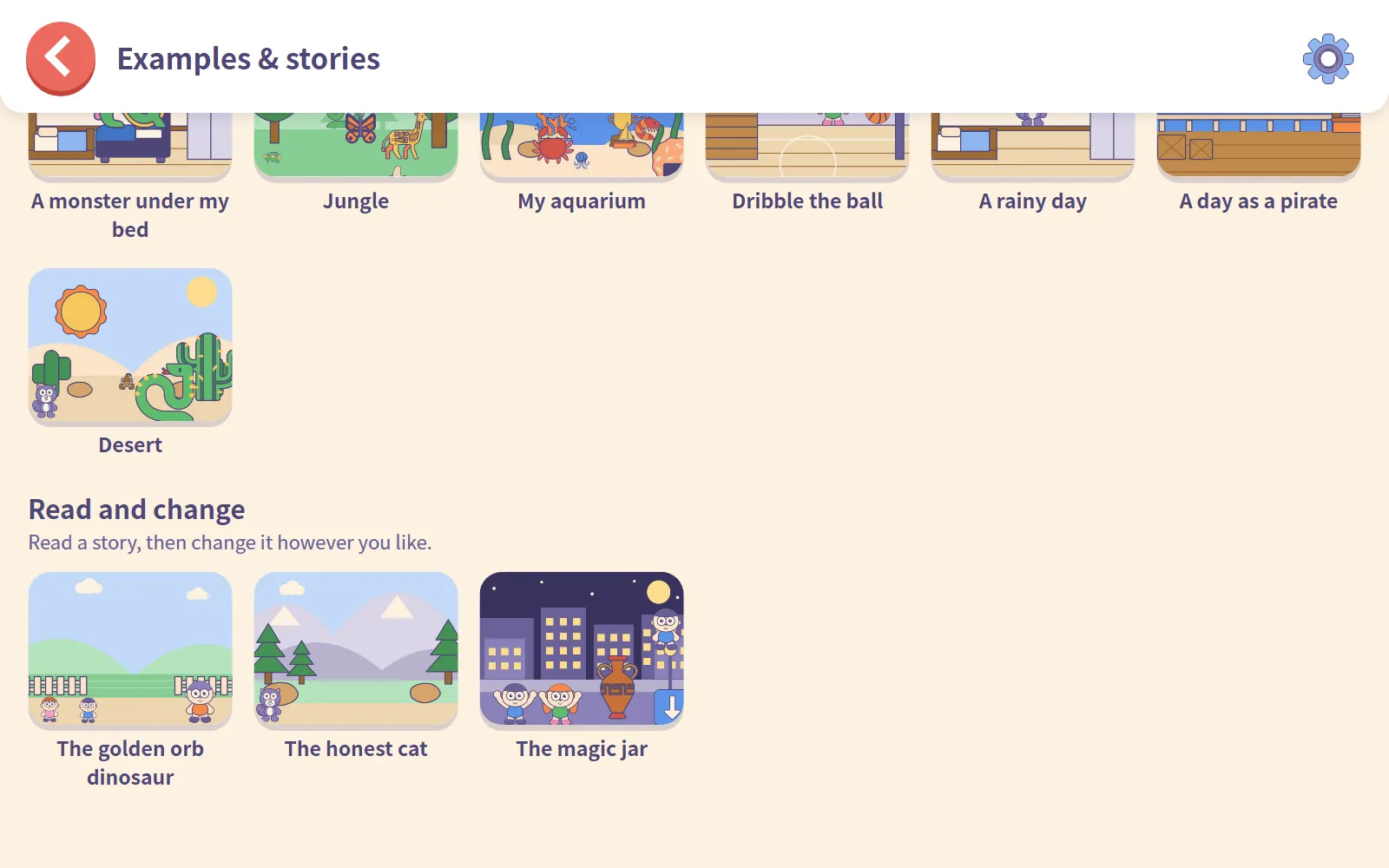
Read and change: Read a story, then change it however you like. These are picture storybooks, such as The honest cat.
Open one and press it
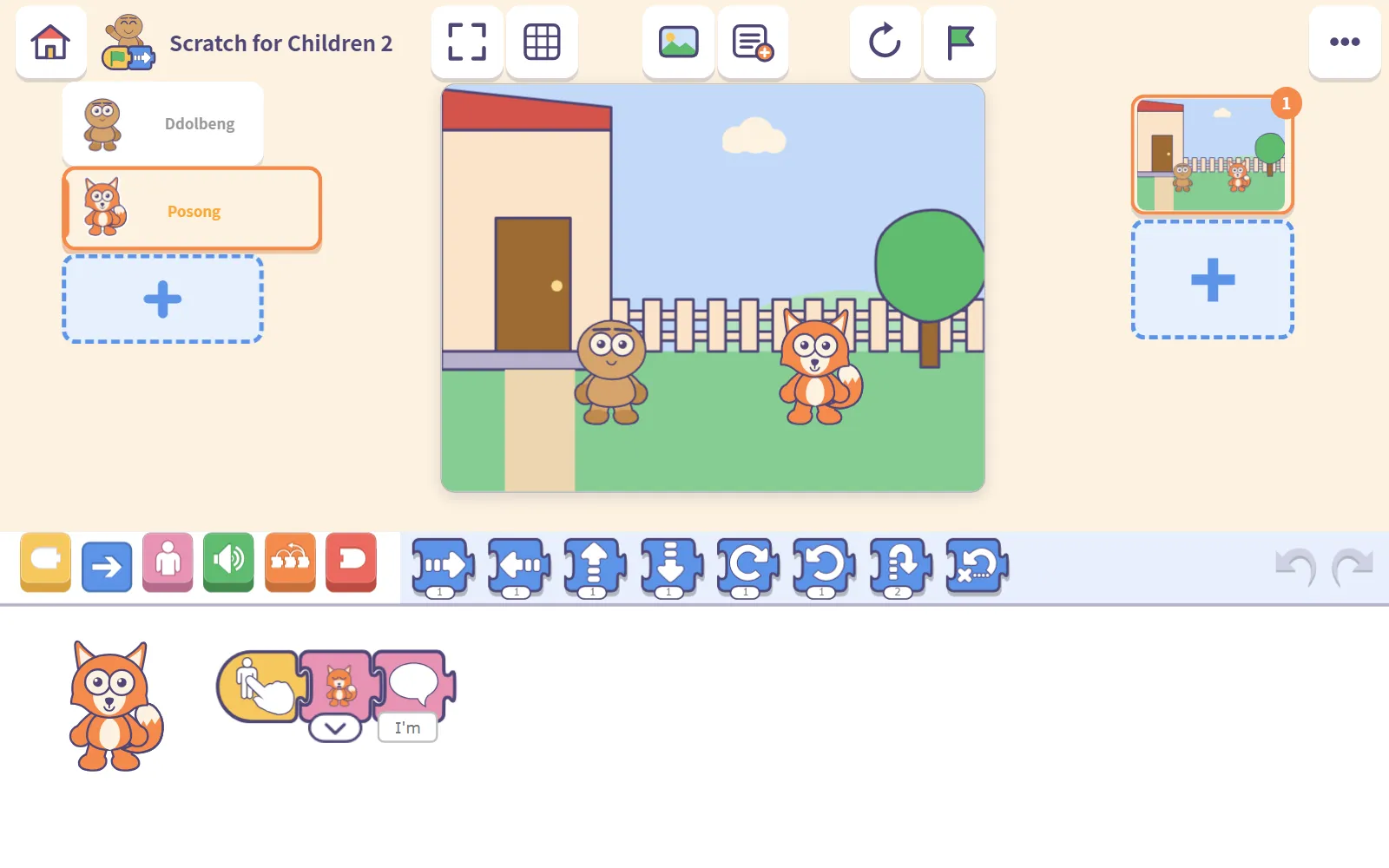
We opened Hello, Ddolbeng! The blocks are already in place, and the example works straight away. A child’s first job here is not to build anything. It is to press things and notice what happens.
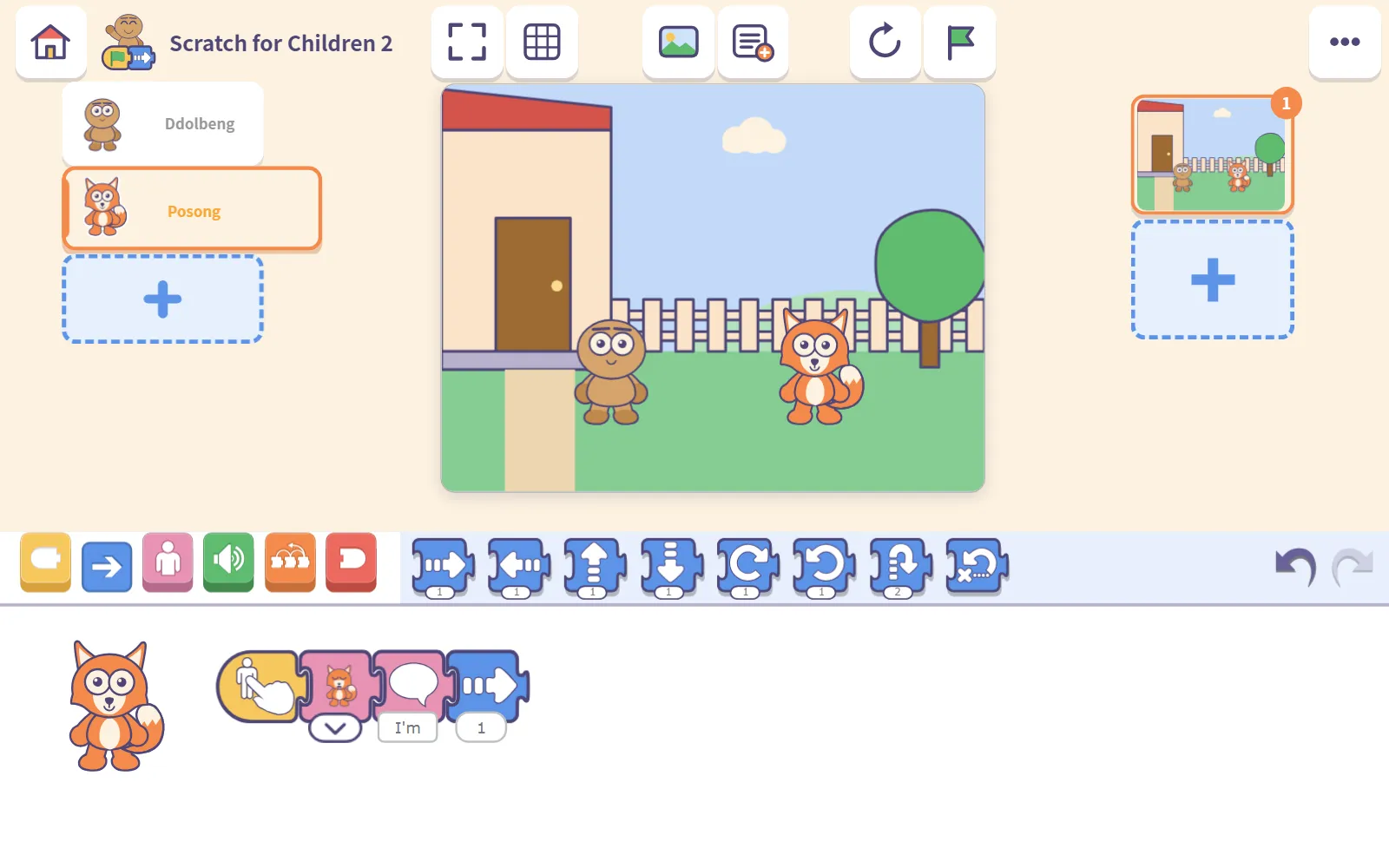
Next, touch something. We dragged one blue block from the drawer onto the end of the row. Changing a number on a block works just as well.
The undo and redo arrows sit beside the block drawer, so the last change can be taken back at once. You can see the undo arrow turn dark once there is something to undo.
Change it, and the original stays
This is the part most worth knowing.
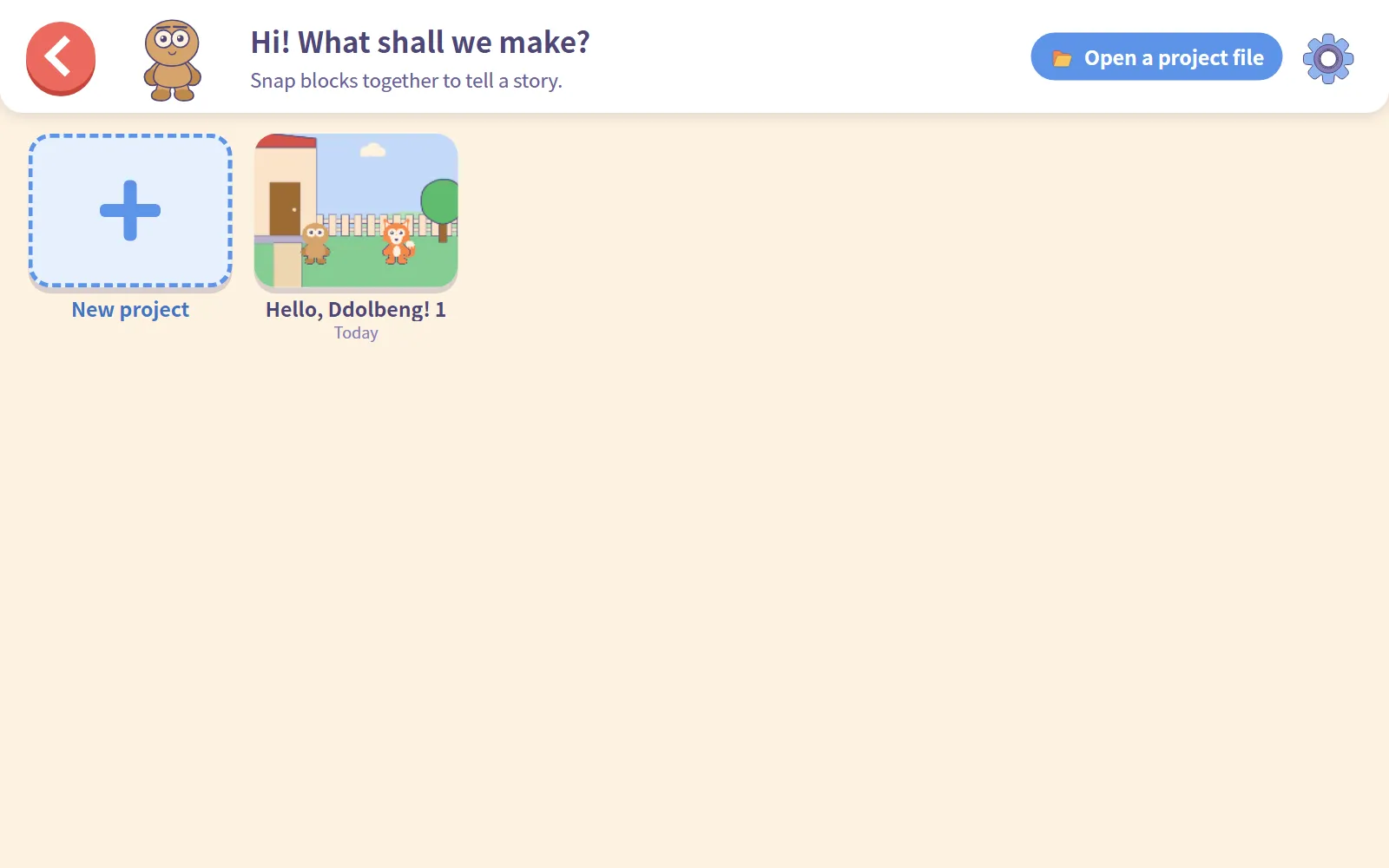
The first change to an example makes a copy. After adding that block, we tapped the house to leave, and My projects now held Hello, Ddolbeng! 1. When we opened the example again from the shelf, it was exactly as before, without our block.
Where you land also differs. Leave without changing anything and you are back on the examples shelf. Leave after a change and you go to My projects, where the copy is.
So you can tell a child: go ahead, change anything. The example will still be there next time.
Storybooks: read first, then change
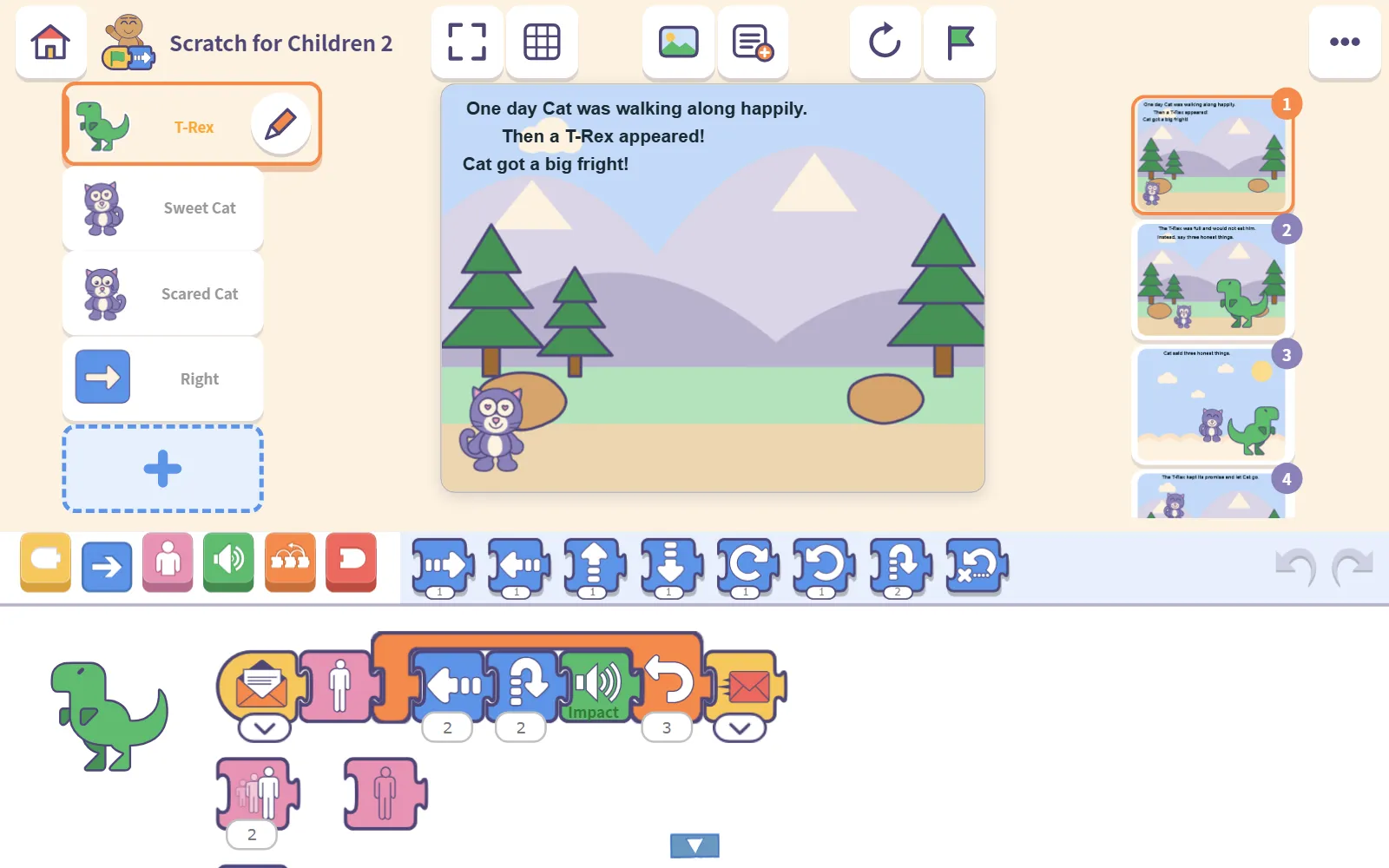
Storybooks open the same way, in the editor, with their scenes lined up on the right and the story written on the stage.
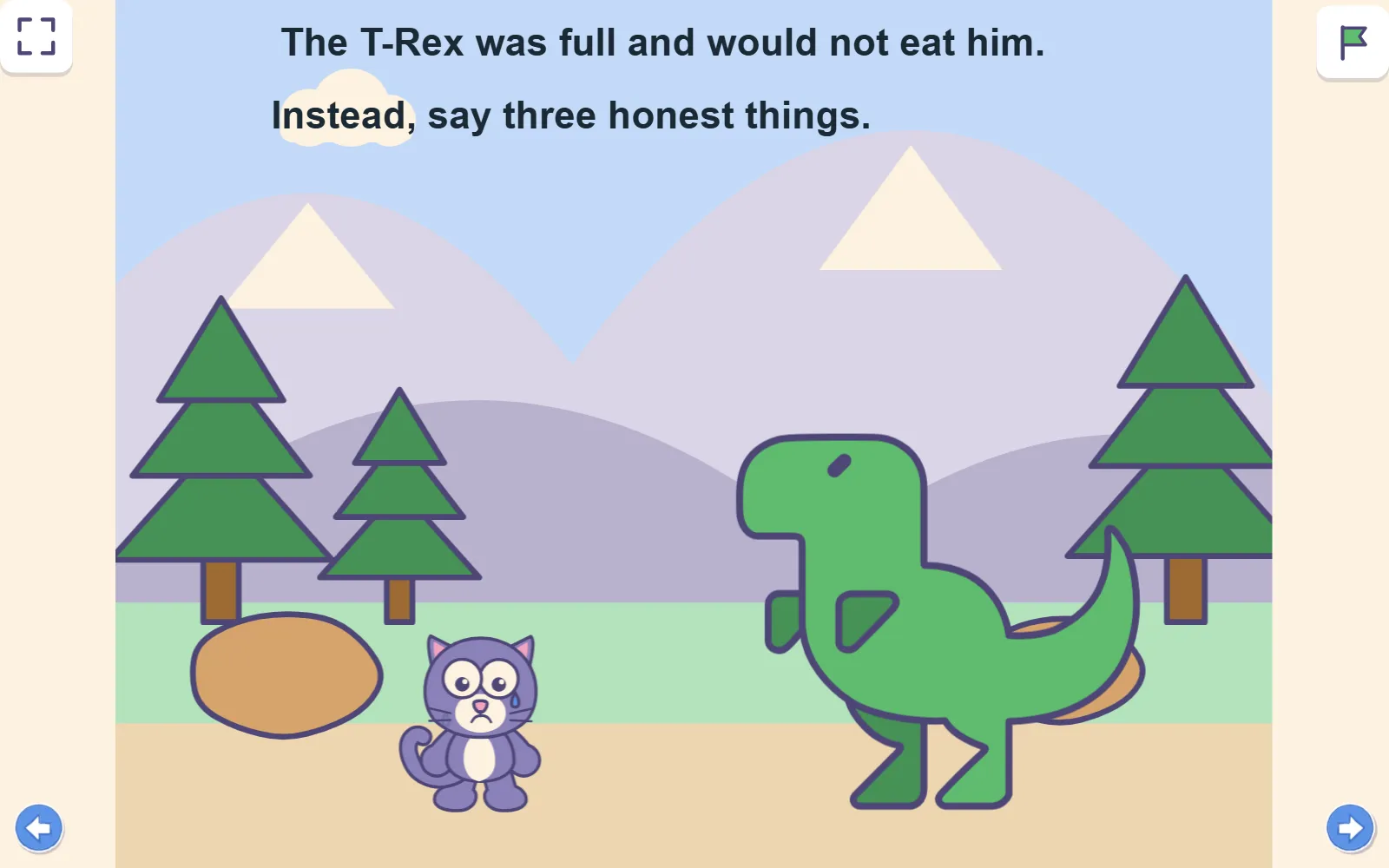
Tap Full screen at the top and the blocks disappear, leaving the picture and the words. The arrow at the bottom right turns to the next scene, so it reads like a picture book. Afterwards, come back to the editor and change the ending. The child already knows the story, so the idea for what to change is already there.
Coming up next
New to the app? Start with Your first 30 minutes with Scratch for Children 2. When the examples start to feel familiar, Scratch for Children 2: give a character a face and a move goes back to building from scratch.
Frequently asked questions
Where are the examples in Scratch for Children 2?
Tap Start, then the third card, Examples & stories. Inside are three shelves: Step by step, Learn, and Read and change.
If a child changes an example, is the example ruined?
No. The first change makes a copy in My projects, named after the example with a number added. The example itself stays as it was.
Can a child delete an example by accident?
The examples have no delete button. Deleting is only for the child's own projects, and needs a long press first.
Are the storybooks suitable for young children?
Some are retellings of old tales and include a sad or slightly scary moment. Reading them together the first time is a good idea; The honest cat is the gentlest.